Colorize Old Photos with AI
Upload a black and white or faded photo and get a repaired, naturally colored version in about 30 seconds. Free preview, no sign-up.
Removes scratches and fading, then adds color. Download: 2 credits.
- Auto-deleted after 24 hours
- Never used for AI training
- Preview without signing up
See the difference
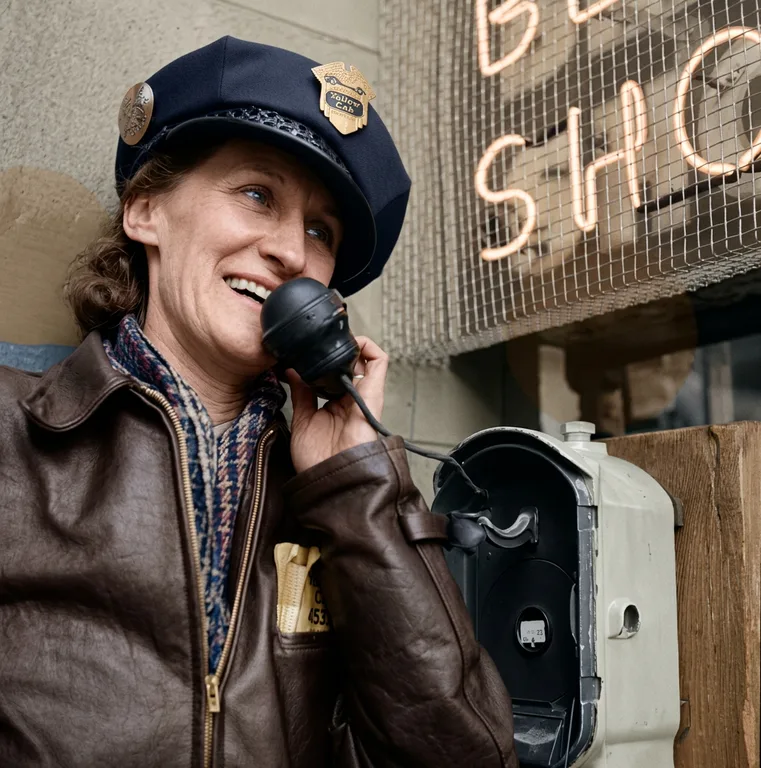
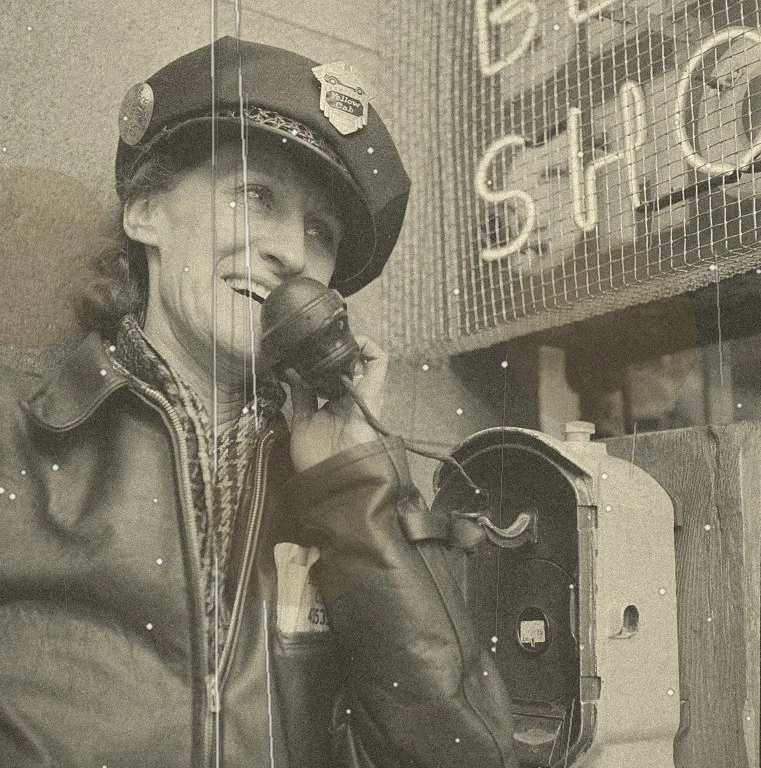
ColorizeOldPhotos is a web tool that colorizes black and white photographs and repairs scratches, creases, stains and fading with AI. You upload a photo, get a free watermarked preview in about half a minute, and spend credits only when you download the full-quality file.
Key facts
- What it is
- A web tool that colorizes black and white photos and repairs scratches, creases, stains and fading with AI.
- Free
- A watermarked 720 px preview with no sign-up, within a daily limit. New accounts get 1 welcome credit.
- Cost to download
- Colorize only: 1 credit. Restore, or restore + colorize: 2 credits.
- Credit packs
- $9.99 for 10 credits, $25.99 for 40, $59.99 for 120. One-time purchase, not a subscription, valid for 2 years.
- Input
- JPG, PNG, WebP or iPhone HEIC, up to 12 MB.
- Output
- Restore results are up to 2048 px on the long side; colorize only keeps the size of the uploaded photo. No watermark on downloads.
- Speed
- About 15 seconds to colorize, 20 to 40 seconds to restore.
- Privacy
- Uploads and results expire 24 hours after upload (always gone within 48) and are never used to train AI models.
- Accuracy
- Colors are AI estimates, not a historical record. Restoration of large missing areas is reconstruction.
- Operator
- windflash, founded by Jason Guo.
Last updated .
How to colorize an old photo in three steps
- Step 1
Upload your photo
Drop in a JPG, PNG or WebP up to 12 MB. A flat scan or an evenly lit phone photo of the print both work.
- Step 2
Pick a mode
Choose colorize only, restore only, or restore and colorize if the print is also scratched or faded.
- Step 3
Compare and download
Drag the before and after slider, then download the result. Your original is never changed.
What it means to colorize an old photo with AI
A black and white photograph records how bright each part of a scene was, but not what color it was. Colorizing means estimating that missing information. A modern colorization model has learned from a very large number of color photographs what skies, skin, foliage, wood, brick and fabric usually look like, and it predicts a plausible color for every region of your picture.
That is why the result looks natural on faces, landscapes and everyday scenes. It is also why the result is an informed estimate rather than a record. The model cannot know that your grandfather's jacket was dark green, only that a jacket of that tone is most likely to be a certain range of colors.
This page is built for the most common request: take a family or historical photo, keep it faithful to the original, and add believable color. If the print is also damaged, the restore and colorize mode repairs it first so the color is not applied to cracks and stains.
Colorize only, or restore and colorize?
The two modes use different technology, and the difference matters for how faithful the result is.
Colorize only
A dedicated colorization model adds color and leaves the picture structure as it is. Best for clean scans and negatives. It does not remove scratches, creases or stains, so those stay visible, now in color.
Restore and colorize
A generative image editing model removes damage and adds color in one pass, prompted to keep faces, poses and composition unchanged. Best for prints with cracks, fading, stains or noise. Costs more to run, so it uses more credits.
Where colorization works best
Family portraits
Skin, hair and eyes are the strongest part of the model. Portraits from the 1920s to the 1970s usually come out natural with no adjustment.
Historical and archive images
Public domain photographs from libraries and archives make good subjects. Remember that clothing, vehicles and flags are guesses unless you have a source for the true colors.
Landscapes and architecture
Sky, water, grass and stone have consistent colors, so outdoor scenes often look convincing.
Group photos and events
Weddings, class pictures and gatherings work well. Larger groups have smaller faces, so scan at high resolution.
Tips for a better result
Input quality changes the output more than any setting. Scan prints at 600 DPI, or photograph them flat in even daylight with no flash and no glare, and crop away the table or album page. Straighten the image so the edges are square.
If your photo is a faded color print rather than black and white, use the restore and colorize mode, which can also recover the fading. Very small or heavily compressed images give the model little to work from, so use the largest copy you have.
If a color looks wrong, run the photo again. The model is not deterministic, and a second attempt sometimes gets a detail like a dress or a car right.
Accuracy, honesty and privacy
AI colors are plausible, not verified. If a family recollection or a museum record tells you an object was a specific color, trust that over the model. We would rather tell you this plainly than promise historical accuracy no AI tool can offer.
Your photos are handled as the private material they are. Uploads and results expire 24 hours after upload (always gone within 48 hours), and they are never used to train AI models. You can read the details in our privacy policy.
Related tools and guides
- AI photo colorizer
Colorize-only mode for clean black and white images.
- Old photo restoration
Remove scratches, creases, stains and fading, with optional color in the same pass.
- Pricing
Free previews; credits only when you download.
- Contact
Questions, refunds, or a deletion request.
Frequently asked questions
How do I colorize an old black and white photo?
Upload a scan or a flat, evenly lit phone photo of the print, pick Colorize only (or Restore + colorize if it is also damaged), and wait about 15 to 30 seconds. Drag the slider to compare before and after. You only sign in when you download.
Are the colors historically accurate?
No tool can promise that. AI colorization is an informed estimate, not a record of the original colors. Skin tones, skies and foliage usually look right; uniforms, cars and clothing may not. If a relative remembers the real color, trust them over the model.
My photo is scratched or faded. Will colorizing fix that?
Colorize only adds color and keeps every scratch and stain. Choose Restore + colorize to remove the damage first and colorize in the same pass.
Can it colorize group photos and portraits of several people?
Yes. Faces in larger groups are small, so scan at high resolution; a sharp 600 DPI scan gives noticeably better skin tones than a small, compressed copy.
Which file types can I upload?
JPG, PNG, WebP and iPhone HEIC photos, up to 12 MB each. HEIC files are converted to JPG on upload.
Are my photos stored or used to train AI?
No. Photos are processed to produce your result and expire 24 hours after upload (always gone within 48 hours). We never use uploads to train models.
Is it free?
Previews are free and need no sign-up (watermarked, 720 px wide). Downloading the full-resolution result uses credits: colorizing costs 1 credit, restoring (with or without color) costs 2. Create a free account and you get 1 welcome credit, enough for one free colorize download; restoring takes 2 credits, and credit packs start at $9.99.
What do I get when I download?
The full-quality file without a watermark. Restore and restore + colorize results are up to 2048 px on the long side. Colorize-only keeps the size of the photo you uploaded, so scan at 600 DPI for the best result. Results are kept for 24 hours after upload, so download what you need within a day.